HOW TO FIND LARGE FILES / FOLDERS THAT MAY BE TAKE UP TOO MUCH FILE SPACE


NOTE: You can watch this entire video to "HOW TO FIND LARGE FILES/FOLDERS THAT MAY BE TAKE UP TOO MUCH FILE SPACE"
Download Free Large Files And Folders Finder+

Portable Large Files And Folders Finder+ Download + Portable Download


If the capacity of your hard drive is running low, it is time to clean off some files. A good place to start is by locating the largest files on your hard drive. If you’ve never done this type of search and disk capacity is running low, now is the time.

Large Files And Folders Finder+ is a handy tool that you can use to look for large files and folders on local or removable storage devices in order to determine the content that is taking too much disk space.

Large Files and Folders Finder+ is also capable of scanning any other types of disks with file systems recognized by Windows using standard methods. The utility can be used to search your local hard drive, mapped network drives, USB drives, Android phones or tablets (only in USB drive mode), and etc so that it can be used by a regular user or a system administrator.

The search results can be viewed within the application's main window or exported to Excel for further processing. Large Files And Folders Finder+ can save you the time needed in order to manually search for large files and folders. With its help, you can use size as a filtering criteria and quickly identify items that take up most disk space. Simply click start once you picked your view and option and it will show you the results very quickly, depending on the size of your drive and number of files. You can now right click on anything found and decide if you want to open the target folder, delete, move or even run the uninstaller as seen in screenshot number three below. 

Newly added Disks Watchdog will notify you if used space on the disk(s) exceeds specified amount.

Platforms:
Windows Vista/7/8/8.1/10 
License: Freeware
Size: 1.45 MB 

 Click the followings links below to Download free Large Files And Folders Finder+

Photobucket

Download Now


If you have any questions, Please feel free to leave a comment below and we’ll try to help you out. If you found this article useful, why not share it with your friends and help inform others.


Search Terms : How, How to, Large Files And Folders Finder+  Portable, Download, download Large Files And Folders Finder+ , download Large Files And Folders Finder+, Portable, free download, download free,Software, download Large Files And Folders Finder+ offline installer, download Large Files And Folders Finder+ online installer, free Download Large Files And Folders Finder+, Download Large Files And Folders Finder+ Portable version,


Category: Software
Large Files And Folders Finder+ 

How to move Mobile Apps from Internal (Phone) Memory to SD Card (External Memory) on Android Mobile


This video will show you How to move Mobile Apps from Internal (Phone) Memory to SD Card (External Memory) on Android Mobile and How it work?

Step-by-Step Instructions given below to move Mobile Apps from Internal (Phone) Memory to SD Card (External Memory) on Android Mobile :

1) First you can go to  Settings from the icon on your Home screen, app drawer or from your phone's Menu button.

2) Tap Applications, Apps, or Application Manager. You may need to scroll down to find it. The label changes depending on the phone and version you are using.

3) Tap Manage Applications you will need to tap this to open your Applications list you will already see your list of apps.

4) The label changes depending on the phone and version you are using.

5) Select an App and Tap on the app that you want to move to SD card. 

6) Look for a button that says "Move to SD Card". 

7) Tap it to move the app. If you don't see a Move to SD Card button, the app cannot be moved. Most preloaded apps cannot be moved to an SD card. 

It may take few seconds up to few minutes to move the app depending on the size of the app.

You will have to do this with each app and if a app cannot be moved, the “Move to SD card” button will be grayed.

For more information click on the links below


If you're having trouble playing videos, we suggest you to install the latest version of the Adobe Flash player.

If you're seeing the "You need to upgrade your Adobe Flash Player to watch this video / Missing Plug-in" error,

First you can upgrade the latest version of “Adobe Flash Player” after that view/play video’s.

Get the latest Adobe Flash Player (Download Adobe Flash Player)


Search Terms : How, How to, How do, Video, Videos, move Applications, move apps, move android Applications, move android apps, move Internal memory, move phone memory, move external memory, move SD memory, move SD card, how to move apps to sd card, how do i move app to sd card, how to move app to sd card without rooting, how to transfer app from internal storage to sd card, how to free internal memory of android device, move app to sd card, install app in sd card,

Download PowerLine 2.1 Android APK - Smart Line Indicators in Your Mobile Status Bar


Download Free PowerLine Android apk
This is a smart app that create smart line indicators in your mobile status bar. It also show Battery, CPU, memory, signal, WiFi, storage, SMS, missed calls, network usage and more. Better than a widget! Always visible, even on the lock screen. 


On installation process completed this app will add the battery line to your screen, this allows you to see how the app works. You can also choose to start the app while the device is booted. You can customize the position, colour, thickness, transparency and type when editing the properties of the line. Powerline is extremely easy to setup, you can even see the changes live on your screen, so you don’t have to change, save and then preview. With the ability to change the offset, you can have a line above the clock and a line under the clock, this allows a lot of variety in the placement of lines.


Only allowing two lines on the free version is quite a restriction, this may force people into unlocking the main features. There is also a very unremarkable add on the bottom of the app, but this is pretty standard for free apps. You do get a lot of different line options, the ones I quite liked were memory, processor and signal.

What's New in PowerLine :
- Fixes in hiding the lines when status bar hides this should now work especially on KitKat
- Option to hide notification now gets you to the settings screen where you can do this
- COOL! Up to 3 indicators in a single line new Maximum width parameter 50% and 33% options
- Automatic restart after update
- Ability to hide from status bar on Android +4.3 in device settings->applications->PowerLine->Show notification [off]

Version: 2.1
Size: 1.1 Mb
Requirements: Android 2.1 and above Version
Language : English

Click the followings links below to Download “PowerLine Android apk”  
Photobucket

Download Now


Search Terms : How, How to, How do, Download, Android, apk, apks, apps, battery, CPU, Download, indicator, Memory, Mobile, Network, PowerLine, Processor, Signal, SMS, status bar, Storage, transparency, WIFI, 

Category: Mobile
Apps

PowerLine - Smart Line Indicators in Your Mobile Status Bar - Video

This video will explain you how to show Indicators in Your Mobile Status Bar and How it work?
Also see Related Articles below links:

For more information click on the links below


Smart Line Indicators in Your Mobile Status Bar - PowerLine APK
If you're having trouble playing videos, we suggest you to install the latest version of the Adobe Flash player.

If you're seeing the "You need to upgrade your Adobe Flash Player to watch this video / Missing Plug-in" error,

First you can upgrade the latest version of “Adobe Flash Player” after that view/play video’s.

Get the latest Adobe Flash Player (Download Adobe Flash Player)


Search Terms : How, How to, How do, Video, Videos, Android, apk, apks, apps, battery, CPU, indicator, Memory, Mobile, Network, PowerLine, Processor, Signal, SMS, status bar, Storage, transparency, WIFI, , 

Minus - 10 GB Free Online Storage Space + 1GB Every Referral

Minus.com - 10 GB Free Online Storage Space - File Sharing Service:
Minus is yet another new online storage service that allows users to upload, publish and discover photos, docs, music, videos and more via the browser, desktop and mobile.  The cool part is they give you a very useful 10GB of free space (1GB additional for each referral up to 50GB) with 2GB file size limit and Unlimited downloads. It is useful to backup your important files, documents and access or share it later. The service doesn’t inflict any limitation in the time of subscription and bandwidth.


To share files from a desktop computer all you need to do is drag and drop a file onto a browser window, and the file automatically uploads. Once the uploading process is completed, instantly get a link to share them with family or friends, but I highly recommend you first Create Account in less than minute doesn’t even require an email. Once you do you’ll see your dashboard, containing all the folders you’ve uploaded. Uploading an extra files, or collection of files, is as simple as dragging it or them from your computer’s browser to your web browser window. Drag and drop multiple files and Minus will take care of the rest, uploading the files for you and putting them in their own folder. You can track what is and what isn’t uploaded yet easily.


Features of Minus:
  • Easy signup
  • Get 10 GB of free space
  • Upload files up to 2 GB
  • Unlimited Downloads and Transfer
  • Publish and share your files and folders (Ex: http://minus.com/myfiles)
  • Follow friends to see what they are sharing
  • Allows anonymous uploading and all files and folders
  • Invite friend and get extra space of server 1GB for each, up to 50GB.
  • Keep all files indefinitely unless deleted by the uploader.

I hope you enjoy it and find it useful to you.


Search Terms : Minus.com, Drag and drop file sharing, Drag-drop and share files with Minus.com, 10 GB Of Free Storage, File sharing service Min.us moves to Minus.com, Online Storage, 10 Gig Free Account, 10GB free online space, Social file-sharing app, Cloud File Sharing Service, mobile developers and desktop app developers, dropbox, free file sharing platform online, Share Files Online, referral up to 50GB, Unlimited transfer, Upload and Download, Publish your files, Free 10GB Storage with 2GB File Upload limit, share files from a desktop computer, dropbox.com, Min.us,

Category: Miscellaneous
Minus.com

How to Disable USB Mass Storage Devices


How to Disable or Enable access to USB Storage Devices

A common security anxiety at organizations allows users to connect a USB flash drive, because it can so easily copy the data. You can completely disable USB devices on writing, using a simple trick to disable USB devices. You must ensure that users are not administrators on the computer, for the reason that they can easily modify this setting back.

Follow the steps given below to disable the access to USB devices
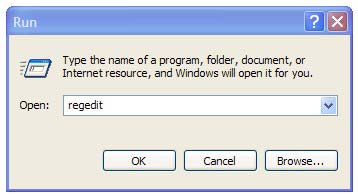
First Click Start Button >  Click Run.
In the Run box, type regedit and then click OK.
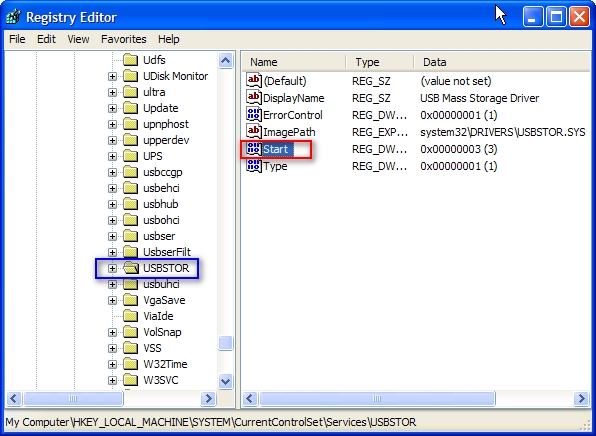
Then locate the following key in the registry
HKEY_LOCAL_MACHINE\SYSTEM\CurrentControlSet\Services\USBSTOR


In the right side panel, double click on the value “start” then set it a Hexadecimal value data 4.
And then click OK. (The default value is 3)


If you want to re-enable the USB ports set it a Hexadecimal value data 3.
Close the registry editor.
You'll need to reboot your computer before the changes take effect.
This trick will works on Windows Vista as well.

That's all.


CAUTION! : It is recommends that before you attempt to use the registry editor, make sure that you back up the whole registry or export the registry keys in the registry that you plan to edit. Incorrectly editing the registry may damage your system. Use Registry Editor at your own risk, we cannot guarantee that you can solve problems that result from using Registry Editor incorrectly.


Category: Registry Tweaks
Operating System : Windows

What is Floppy Drive and How it Works


Floppy drives are most advanced storage devices and it reads and writes data on floppy disks. Floppy Drive connects to the motherboard with a ribbon (data) cable and also power cable attached to it. Presently new computers do not have this floppy drives because USB flash drives and optical drives have replaced floppy drives in newer systems, it can be added internally to your computer (or) externally with a USB cable. It is a removable media or removable drive you can remove whatever disk is currently in the drive, and replace with another.

Storage Devices


Secondary storage is also known as auxiliary memory or external memory or back up storage. The secondary storage devices are used in most computer systems to supplement the limited storage capacity of the primary memory section. This is similar to our keeping a diary or a note book when our memory is incapable of storing many facts and figures. We refer to our diary whenever we need the data.

Secondary Storage Devices are
1. Magnetic tape
2. Magnetic disks
3. Compact Disk Read Only Memory (CD-ROM)
The data is either stored or erased by laser beam to CD-ROM.

- - - - - - - - - - - - - - - - - - - - - - - - - - - - - - - - - - - - - - - - - - - - - - - - - - - - - - - - - - - - - 

Magnetic Tape:
Magnetic tap is one of the most popular storage medium for larger data that are sequentially accessed and processed. The tape is plastic ribbon usually 1/2 inch wide that is coated as one side with magnetic material. It is similar to the tape used on a tape recorder except that is higher quality and more durable.

Advantages
(a) Unlimited Storage Capacity
(b) Low Cost
(c) Portability

- - - - - - - - - - - - - - - - - - - - - - - - - - - - - - - - - - - - - - - - - - - - - - - - - - - - - - - - - - - - - 

Magnetic Disks :
A magnetic disk is a, circular plate coated on both sides with a magnetic material. It is very similar to a gramophone record. Each disk consists of a number of invisible concentric circles called tracks. Each track is further sub-divided into sectors. Information is recorded on the tracks of a disk surface in the form of invisible tiny magnetic spots. The presence of a magnetized spot is represents as '1 ' bit and its absence represented a '0' bit.

Magnetic disks are two types:
1. Floppy Disk
2. Hard Disk

- - - - - - - - - - - - - - - - - - - - - - - - - - - - - - - - - - - - - - - - - - - - - - - - - - - - - - - - - - - - - 

Floppy Disk:
The floppy disk is a flexible, circular shaped medium with a magnetic coating on it. It is sensitive to touch and dust. A floppy disk enclosed in a leather jacket to protect it from external damage and dust.

There are three types of floppy’s available.
1) 3.5" Floppy Disk ( Capacity 1.44 Mb ) introduced : Sony
2) 5.25" Floppy Disk ( Capacity 1.2 Mb ) introduced : Shugart
3) 8.0" Floppy Disk ( Capacity 100 Kb ) introduced : IBM

The 3.5" disks are the most popular and commonly used.

On the Basis of Capacity they are of two types:
(a) High density
(b) Low density

- - - - - - - - - - - - - - - - - - - - - - - - - - - - - - - - - - - - - - - - - - - - - - - - - - - - - - - - - - - - - 

Hard Disk:
Hard Disk is also a secondary storage device. The hard disk storage system was developed to reduce the problem of diskettes frequently getting damaged.

Hard disks come in different capacities. The minimum capacity is generally twenty times that of a high density floppy disk in terms of storage capacity. The hard disk is generally fixed inside the computers.

- - - - - - - - - - - - - - - - - - - - - - - - - - - - - - - - - - - - - - - - - - - - - - - - - - - - - - - - - - - - -  

Compact Disk Read Only Memory (CD-ROM):
CD-ROM disks are made of reflective metals. CD-ROM is written during the process of manufacturing by high power laser beam. The storage density is very high, cost is very low and access time is relatively fast.

- - - - - - - - - - - - - - - - - - - - - - - - - - - - - - - - - - - - - - - - - - - - - - - - - - - - - - - - - - - - -  

Input/Output:
The term Input/Output is used to describe any program, operation or device that transfers data to or from a computer and to or from a peripheral device. Every transfer is an output from one device and an input into another. Devices such as keyboards and mouse are input-only devices while devices such as printers are output-only. A writable CD-ROM is both an input and an output device.

Input Devices:
Input device is a hardware device which is use to input data, image, and video to the computer.

Input Devices:
Digital camera
Keyboard
Microphone
Mouse
Scanner
Web Cam
Light pen
Joy stick
Etc.
- - - - - - - - - - - - - - - - - - - - - - - - - - - - - - - - - - - - - - - - - - - - - - - - - - - - - - - - - - - - - 

Out put Devices:
Output device is a hardware device which is use to receives or displays output from a computer

Output Devices:Monitor
Printer
Plotter
Speaker
Projector
Etc.


Search Terms : it solutions, disk drive, hard disk, device, device driver, io devices, device driver, tape in, what is a storage device

Recommended Articles

100 GB Free Backup

 
Contact Form