Disable Autorun on CD-Rom or USB drives


Disable Autorun on CD-Rom or USB drives
First Click Start Button >  and then click Run.
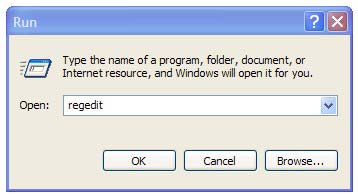
A Run box will appear.
In the Run box, type regedit and then click OK.
Then locate the following key in the registry
HKEY_CURRENT_USER\Software\Microsoft\Windows\CurrentVersion\Policies\Explorer
Double click the value > NoDriveTypeAutoRun
 Edit DWORD Value >
Set it to the value data > 000000FF > Click OK
That's all.
Close the registry Editor, you must restart your computer before the changes that you make affect.


CAUTION! : It is recommends that before you attempt to use the registry editor, make sure that you back up the whole registry or export the registry keys in the registry that you plan to edit. Incorrectly editing the registry may damage your system. Use Registry Editor at your own risk, we cannot guarantee that you can solve problems that result from using Registry Editor incorrectly.


Category: Registry Tweaks
Operating System : Windows

How to Import and Export Windows Registry

How to Import Windows Registry:
First Click Start Button >  and then click Run.
Run box will appear.
In the Run box, type regedit and then click OK.
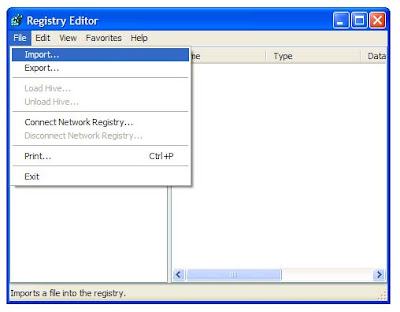
On the File menu, click Import.
Import Registry File dialog box will appear, browse the registry file (.reg) , and then click Open

- - - - - - - - - - - - - - - - - - - - - - - - - - - - - - - - - - - - - - - - - - - - - - - -

How to Export Registry Keys
First Click Start Button >  and then click Run
In the Run box, type regedit and then click OK.
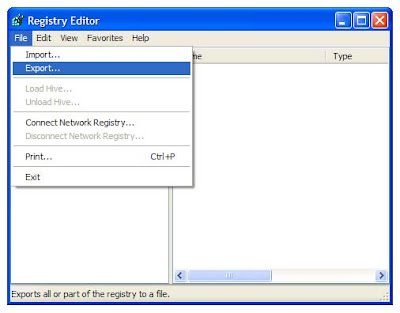
On the File menu, click Export
 
In the Save in box, select you want to export all or only selected branches of the registry.
And select a location in which to you save the backup (.reg) file.
In the File name box, type a file name, and then click Save.


CAUTION! : These tips and tricks are advanced, we can not guarantee that you will be able to solve your problem that result from using tips and tricks incorrectly and is used at your own risk.


Category: Tips & Tricks
Operating System : Windows


List of Common Control Panel Applets


List of Common Control Panel Applets
All the control panel tools are named with .cpl extension as ( *.cpl and all the .cpl ) the files are stored in : \windows\system32 directory. 

You can access these applets by click the Start  > Run and  just typing these applets.

This is a list of most common Control Panel Applets
  • appwiz.cpl – Add / Remove Programs
  • Access.cpl -- Accessibility options
  • desk.cpl -- Display Properties 
  • firewall.cpl -- Firewall Settings 
  • inetcpl.cpl -- Internet Options 
  • hdwwiz.cpl -- Add Hardware Wizard
  • mmsys.cpl -- Sound and Audio 
  • ncpa.cpl -- Network Connections 
  • Intl.cpl -- Regional, Language Options
  • nusrmgr.cpl -- User Accounts 
  • bthprops.cpl -- Bluetooth Properties
  • Joy.cpl – Game controllers
  • netsetup.cpl -- Network Setup Wizard
  • powercfg.cpl -- Power Options 
  • sysdm.cpl -- System Properties 
  • wscui.cplWindows Security Center 
  • odbccp32.cpl -- ODBC Data Source Administrator
  • nusrmgr.cpl -- User Accounts
  • wuaucpl.cpl -- Automatic Updates Configuration  
  • irprops.cpl -- Wireless Link
  • Main.cpl – Mouse Properties
  • Telephon.cpl – Location Information
  • Timedate.cpl – Date and Time properties 

That's all.


CAUTION! : These tips and tricks are advanced, we can not guarantee that you will be able to solve your problem that result from using tips and tricks incorrectly and is used at your own risk.


Category: Tips & Tricks
Operating System : Windows

How to speed up folder browsing


How to speed up folder browsing
Please follow the steps given below:
·         First Go to My Computer > then click on Tools Menu
·         Click on Folder Options
·         Click on the View tab
·         Then Uncheck the Automatically search for Network folders and Printers  Check box
·         And click Apply Button
·         Click OK
·         After Reboot your Computer 

That's all.


CAUTION! : These tips and tricks are advanced, we can not guarantee that you will be able to solve your problem that result from using tips and tricks incorrectly and is used at your own risk.
Category: Tips & Tricks
Operating System : Windows

How to check Windows XP Activation

First Go to Start button à Click Run à and type  “oobe/msoobe /a(Type without quotes).

and Press Enter Key ………………


That's all.

CAUTION! : These tips and tricks are advanced, we can not guarantee that you will be able to solve your problem that result from using tips and tricks incorrectly and is used at your own risk.
Category: Tips & Tricks
Operating System : Windows

Automatic / Quick Shutdown your computer

Automatic / Quick Shutdown your computer
1. Right click on Desktop > Select New  > Shortcut


2. A (Create Shortcut) window appear in the screen. 


In the shortcut window type : shutdown -r -t 01 -c "Rebooting your PC"   >  the message you want to display

3. Select Next

4. Type the Name if anything……. Ex: Shutdown, Turn off etc.,

A new shortcut icon created in the desktop


Now, double click the icon!

Your computer will Automatic / Quick shutdown.


Another Tip:

1. Go to start > Click Run

2. Type :  


shutdown -a  > This will starts a 30 second countdown for a shutdown or restart.

shutdown –s  > Shuts down the computer

shutdown -1  > Log off the computer or current user.

shutdown –f  > This will forcefully closing all of your running applications to shut down.

shutdown –r  > Reboot / Restart the computer

shutdown -f -t xx  > This will turn off your computer after the specified time.

Ex: shutdown -f -t 60  >  if you will enter the parameters as -f -t 60 seconds.
 
3. Hit Enter Key
That's all.


CAUTION! : These tips and tricks are advanced, we can not guarantee that you will be able to solve your problem that result from using tips and tricks incorrectly and is used at your own risk.
Category: Tips & Tricks
Operating System : Windows

Recommended Articles

100 GB Free Backup

 
Contact Form