Disable/Remove the Log Off and Turn Off Buttons in Windows


Disable/Remove the Log Off and Turn Off Buttons in Windows

This tweak is very useful for those users who want to restrict the common users to shutdown public computer in common areas.  If so, you'll be glad to know that you can disable the Log Off and Turn Off Computer buttons on the Start menu.

Follow the given steps to Disable/Hide Log off button on the start menu:
To use this feature, you will need to be logged into your computer with administrative rights.

  • Disable/Hide Log Off
First Click Start Button > and then click Run.
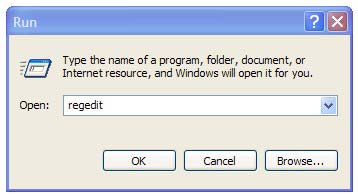
Run box will appear.
In the Run box, type regedit and then click OK.

Then locate the following key in the registry
HKEY_CURRENT_USER\Software\Microsoft\Windows\CurrentVersion\Policies\Explorer


Click the Edit menu > New > Create a Binary value name it NoLogOff


Double click on NoLogOff and enter the number 01 00 00 00 in the Value Data.


  • Disable/Hide Turn Off Computer
Follow the given steps to disable Turn off Computer" button on the start menu:
First Click Start Button > and then click Run.
Run box will appear.
In the Run box, type regedit and then click OK.


Then locate the following key in the registry
HKEY_CURRENT_USER\Software\Microsoft\Windows\CurrentVersion\Policies\Explorer


Click the Edit menu > New > Create a DWORD Value and name it NoClose


Double click NoClose and give value 1 in Value Data.

That's all.


Search Terms: How to, How do, Disable Logoff on the Start Menu, Remove Log Off from the Start Menu at Registry Guide for Windows, Disable Power Button To Turn Off Pc, Disable the Log Off and Turn Off Computer buttons, Disable Turn Off Computer button, Disable the logoff buttons, Disable the Log Off and Turn Off Buttons in Windows, Enable/disable turn-off/ log-off option in start menu, Remove Log Off and Turn Off Computer from Start Menu, Disable/Enable Start Menu Logoff, Enable/ disable turn-off/ log-off option in start menu, Hide the Log off item from the Start Menu, Hiding log off button, Hide Log Off Button on Start Menu, Hide Shutdown and Logoff buttons, Disable/Hide the Log Off and Turn Off Buttons in Windows


CAUTION! : It is recommends that before you attempt to use the registry editor, make sure that you back up the whole registry or export the registry keys in the registry that you plan to edit. Incorrectly editing the registry may damage your system. Use Registry Editor at your own risk, we cannot guarantee that you can solve problems that result from using Registry Editor incorrectly.

Category: Registry Tweaks
Operating System : Windows

Show Hibernate Option on the Shut Down Dialog


Show Hibernate Option on the Shut Down dialog :
For some reason, Hibernate option may not available from the default Shutdown dialog. however you can enable it just by holding down the “SHIFT” key while the dialog is visible.


You can leave your work, shutdown your computer and resume it next time as it is Even !

First you can do The Following steps below:
Click Start button > Control Panel > Power Options > Hibernate tab > check Enable hibernation box > Apply/OK > reboot.


After

When you want to stop your work and shutdown (Keeping your programs open)

Do The Following :
1. First Click Start Button > Turn off Computer
2. The Turn Off menu comes up Hold the 'Shift' Key and 'Stand By' changes to 'Hibernate'
3. Click Hibernate (Shift Kept Pressed)


Photobucket

It will save the all work and shutdown the computer!

Now, when you switch it again it will resume it again!


No loading window that appear and you will continue your work as if you were watching the monitor was switched off and now on again!

NOTE: If the Hibernate option is not available, your system not support it!
For some reason, Hibernate, which should be accessible on power saving mode (ACPI) enabled PCs and laptops
.

That's all.


CAUTION! : These tips and tricks are advanced, we can not guarantee that you will be able to solve your problem that result from using tips and tricks incorrectly and is used at your own risk.


Category: Tips & Tricks
Operating System : Windows

Enable Hibernate Option in Windows XP - Video


This video will show you How to Enable Hibernate Option in Windows XP / Show Hibernate Option on the Shut Down Dialog

Photobucket

If you're having trouble playing videos, we suggest you to install the latest version of the Adobe Flash player.

If you're seeing the "You need to upgrade your Adobe Flash Player to watch this video / Missing Plug-in" error,

First you can upgrade the latest version of “Adobe Flash Player” after that view/play video’s.

Get the latest Adobe Flash Player (Download Adobe Flash Player)

Missing Hibernate option on shutdown menu


Missing Hibernate option on shutdown menu
Follow these steps to make Hibernate option available in your shutdown menu
First Click Start Button > Click Run.
Run box will appear.
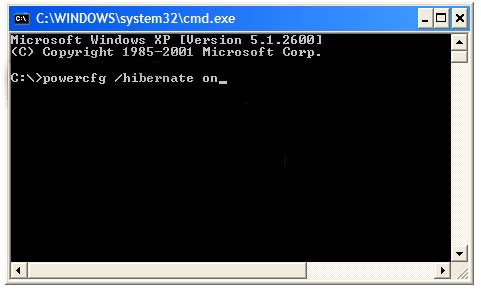
In the Run box, type cmd and click OK.
In the command prompt, type: powercfg /hibernate on (or) powercfg.exe /hibernate on
 Hit the Enter key….

Remove / Disable hibernation on Shutdown menu

First Click Start Button > Click Run.
Run box will appear.
In the Run box, type cmd and click OK.
In the command prompt, type: powercfg /hibernate off (or) powercfg.exe /hibernate off
Hit the Enter key….
Close the command prompt window then restart your computer before the changes that you make affect.
That's all.


You have no idea how to fix this problem please download Microsoft fix it tools.


CAUTION! : These tips and tricks are advanced, we can not guarantee that you will be able to solve your problem that result from using tips and tricks incorrectly and is used at your own risk.
Category: Tips & Tricks
Operating System : Windows

Remove / Disable Shutdown from Start Menu

Remove / Disable Shutdown from Start Menu:
First Click Start Button > and then click Run.
Run box will appear.
In the Run box, type regedit and then click OK.
Then locate the following key in the registry
HKEY_CURRENT_USER\Software\Microsoft\Windows\CurrentVersion\Policies\Explorer\ NoShutdown


Select Edit menu > New > String value >
 
In the Name Value type the name of the entry NoShutdown then Double click the value > Value data >  set it to the value 1
To change the default settings > Change it to 0 to allow shutdowns.

Another Tip:

First Click Start Button >  and then click Run.
Run box will appear.
In the Run box, type regedit and then click OK.
Then locate the following key in the left side
HKEY_CURRENT_USER\Software\Microsoft\Windows\CurrentVersion\Policies\Explorer\NoShutdown 

Select Edit menu > New > Binary value >
In the Name Value type the name of the entry NoShutdown then Double click the value >

Value data > set it to the value 01 00 00 00 >
And then click OK,
To change the default settings > Change it to 0 to allow shutdowns

That's all.

Close the registry Editor, you must restart your computer before the changes that you make affect


CAUTION! : It is recommends that before you attempt to use the registry editor, make sure that you back up the whole registry or export the registry keys in the registry that you plan to edit. Incorrectly editing the registry may damage your system. Use Registry Editor at your own risk, we cannot guarantee that you can solve problems that result from using Registry Editor incorrectly.


Category: Registry Tweaks
Operating System : Windows

Automatic / Quick Shutdown your computer

Automatic / Quick Shutdown your computer
1. Right click on Desktop > Select New  > Shortcut


2. A (Create Shortcut) window appear in the screen. 


In the shortcut window type : shutdown -r -t 01 -c "Rebooting your PC"   >  the message you want to display

3. Select Next

4. Type the Name if anything……. Ex: Shutdown, Turn off etc.,

A new shortcut icon created in the desktop


Now, double click the icon!

Your computer will Automatic / Quick shutdown.


Another Tip:

1. Go to start > Click Run

2. Type :  


shutdown -a  > This will starts a 30 second countdown for a shutdown or restart.

shutdown –s  > Shuts down the computer

shutdown -1  > Log off the computer or current user.

shutdown –f  > This will forcefully closing all of your running applications to shut down.

shutdown –r  > Reboot / Restart the computer

shutdown -f -t xx  > This will turn off your computer after the specified time.

Ex: shutdown -f -t 60  >  if you will enter the parameters as -f -t 60 seconds.
 
3. Hit Enter Key
That's all.


CAUTION! : These tips and tricks are advanced, we can not guarantee that you will be able to solve your problem that result from using tips and tricks incorrectly and is used at your own risk.
Category: Tips & Tricks
Operating System : Windows

Recommended Articles

100 GB Free Backup

 
Contact Form