Change Computer Drive letters


How to change Computer Drive letters:
Please follow the steps given below

First Click Start Button > Click Run.
Run box will appear.
In the Run box, type diskmgmt.msc and click OK.

 
In the Disk Management window, Right click and chose option > Change Drive Letter and paths then Click Change Button. 

in the window you will see Assign the following drive letter option and the right side of corner chose your new drive letter  ex: H, I, J, K, L etc., 


Click on Ok button and click on Ok button again.
That's all.

CAUTION! : These tips and tricks are advanced, we can not guarantee that you will be able to solve your problem that result from using tips and tricks incorrectly and is used at your own risk.
Category: Tips & Tricks
Operating System : Windows

Disable Windows Startup Sounds

How to Disable Windows Startup Sounds
Follow these steps below
First Click Start Button > Click Settings > Control Panel >


Chose Sounds and Audio Devices


Double Click it. Then Click on the "Sounds" tab
Scroll down Program Events and find Start Windows and Windows Logon

Disable or Change these two events one by one.

·         To change Start Windows, Select Start Windows the pop-up menu that currently says "Windows XP Startup" on the screen below.

·         To disable them click Sounds pop-up menu, but this time you are go to the top option Select > None and click on "Apply" Button

·         To change Windows Logon, Select Windows Logon the pop-up menu that currently says "Windows XP Logon Sound" on the screen below.

·         To disable them click Sounds pop-up menu, but this time you are go to the top option Select > None and click on "Apply" Button
and you should be able to restart your computer before the changes that you make affect

That's all.

CAUTION! : These tips and tricks are advanced, we can not guarantee that you will be able to solve your problem that result from using tips and tricks incorrectly and is used at your own risk.
Category: Tips & Tricks
Operating System : Windows

How to fix USB device not recognized on Windows


How to fix USB device not recognized on Windows
If you receive "USB Device Not Recognized" Error Message here is a simple solution to fix this problem.

First Click Start Button >  click Run.
Run box will appear.
In the Run box, type Devmgm.msc and click OK.
A Device Manager window appear in the screen


and then expand the Universal Serial Bus controller then select Unknown Device


and Right Click the mouse select properties or Double click it 

 
In the USB Root Hub Properties dialog box, select the Power Management tab uncheck "Allow the computer to turn off this device to save power"

That's all.
Restart your computer before the changes that you make affect.


CAUTION! : These tips and tricks are advanced, we can not guarantee that you will be able to solve your problem that result from using tips and tricks incorrectly and is used at your own risk.
Category: Tips & Tricks
Operating System : Windows

Missing Hibernate option on shutdown menu


Missing Hibernate option on shutdown menu
Follow these steps to make Hibernate option available in your shutdown menu
First Click Start Button > Click Run.
Run box will appear.
In the Run box, type cmd and click OK.
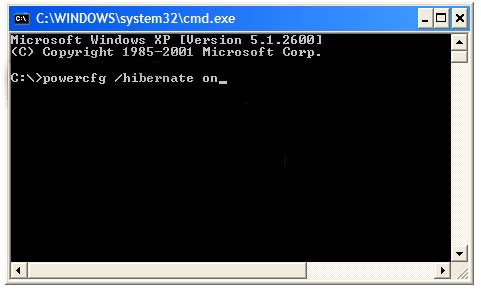
In the command prompt, type: powercfg /hibernate on (or) powercfg.exe /hibernate on
 Hit the Enter key….

Remove / Disable hibernation on Shutdown menu

First Click Start Button > Click Run.
Run box will appear.
In the Run box, type cmd and click OK.
In the command prompt, type: powercfg /hibernate off (or) powercfg.exe /hibernate off
Hit the Enter key….
Close the command prompt window then restart your computer before the changes that you make affect.
That's all.


You have no idea how to fix this problem please download Microsoft fix it tools.


CAUTION! : These tips and tricks are advanced, we can not guarantee that you will be able to solve your problem that result from using tips and tricks incorrectly and is used at your own risk.
Category: Tips & Tricks
Operating System : Windows

How to Enable Num Lock Key at Startup Automatically


How to Enable Num Lock Key at Startup Automatically 
First Click Start Button >  and then click Run.
A Run box will appear
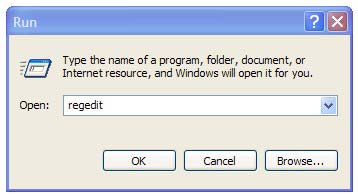
In the Run box, type regedit and then click OK.
Then locate the following key in the registry 
HKEY_USERS\Default\Control Panel\Keyboard 

In the right side panel, double click on the value InitialKeyboardIndicators then set it to the value data from 0 to 2.
That's all.

Close the registry Editor, you must restart your computer before the changes that you make affect.


CAUTION! : It is recommends that before you attempt to use the registry editor, make sure that you back up the whole registry or export the registry keys in the registry that you plan to edit. Incorrectly editing the registry may damage your system. Use Registry Editor at your own risk, we cannot guarantee that you can solve problems that result from using Registry Editor incorrectly.


Category: Registry Tweaks
Operating System : Windows

Remove / Disable Shutdown from Start Menu

Remove / Disable Shutdown from Start Menu:
First Click Start Button > and then click Run.
Run box will appear.
In the Run box, type regedit and then click OK.
Then locate the following key in the registry
HKEY_CURRENT_USER\Software\Microsoft\Windows\CurrentVersion\Policies\Explorer\ NoShutdown


Select Edit menu > New > String value >
 
In the Name Value type the name of the entry NoShutdown then Double click the value > Value data >  set it to the value 1
To change the default settings > Change it to 0 to allow shutdowns.

Another Tip:

First Click Start Button >  and then click Run.
Run box will appear.
In the Run box, type regedit and then click OK.
Then locate the following key in the left side
HKEY_CURRENT_USER\Software\Microsoft\Windows\CurrentVersion\Policies\Explorer\NoShutdown 

Select Edit menu > New > Binary value >
In the Name Value type the name of the entry NoShutdown then Double click the value >

Value data > set it to the value 01 00 00 00 >
And then click OK,
To change the default settings > Change it to 0 to allow shutdowns

That's all.

Close the registry Editor, you must restart your computer before the changes that you make affect


CAUTION! : It is recommends that before you attempt to use the registry editor, make sure that you back up the whole registry or export the registry keys in the registry that you plan to edit. Incorrectly editing the registry may damage your system. Use Registry Editor at your own risk, we cannot guarantee that you can solve problems that result from using Registry Editor incorrectly.


Category: Registry Tweaks
Operating System : Windows

Recommended Articles

100 GB Free Backup

 
Contact Form