Change Default Folder Location


How to Change Default Folder Location:

You can modify or change the default location of special folders like:
  • My Documents

  • Favorites

  • Personal

  • My Pictures

  • My Music

  • My Videos

  • Personal

  • Programs

First Click Start Button >  Click Run.
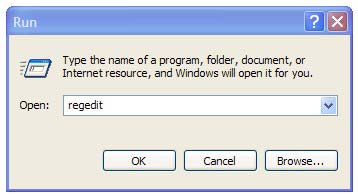
A Run box will appear
In the Run box, type regedit and hit Enter Key.

Then locate the following key in the left side

HKEY_LOCAL_MACHINE\SOFTWARE\Microsoft\Windows\CurrentVersion\Explorer\Shell Folders


Double click on any locations you want to change and after Value Data Box Change the desired folder location.  


Ex: If you Change the My Documents folder location, My Documents is normally list as "Personal"
Double click on “Personal” Value Name and give the desired folder path.  

That's all.

Close the registry Editor, you must restart your computer before the changes that you make affect   


CAUTION! : It is recommends that before you attempt to use the registry editor, make sure that you back up the whole registry or export the registry keys in the registry that you plan to edit. Incorrectly editing the registry may damage your system. Use Registry Editor at your own risk, we cannot guarantee that you can solve problems that result from using Registry Editor incorrectly.


Category: Registry Tweaks
Operating System : Windows

Disable Explorer Thumbnail View on Windows

How to Disable Explorer Thumbnail View
If you want disable thumbnails in Windows
Simply do the following steps:
First Click Start Button > and then click Run.
Run box will appear.
In the Run box, type regedit and then click OK.

Then locate the following key in the registry
HKEY_CURRENT_USER\Software\Microsoft\Windows\CurrentVersion\Explorer\Advanced


Double click the ClassicViewState


Set it to the Edit DWORD Value 1 and Click OK
 

That's all.

Close the Registry Editor, you must restart your computer before the changes that you make affect


CAUTION! : It is recommends that before you attempt to use the registry editor, make sure that you back up the whole registry or export the registry keys in the registry that you plan to edit. Incorrectly editing the registry may damage your system. Use Registry Editor at your own risk, we cannot guarantee that you can solve problems that result from using Registry Editor incorrectly.


Category: Registry Tweaks
Operating System : Windows

Remove / Disable Windows Boot Logo


How to Remove / Disable Windows Boot Logo

Disable or remove the Boot logo / Splash screen which will speed up the Windows boot process by a few seconds.

If you remove or disable the boot logo, you will additionally not be able to see any boot messages, such as check disk.

You can remove the boot logo, follow these steps below

First Click Start  Button > Click Run.
Run box will appear.

1. In the Run box, type msconfig and click OK.


2. In the System Configuration Utility, click the BOOT.INI tab.  


3. On the BOOT.INI tab, see the Boot options click the /NOGUIBOOT check box, Click OK


Restart your computer before the changes that you make affect.
That's all.

CAUTION! : These tips and tricks are advanced, we can not guarantee that you will be able to solve your problem that result from using tips and tricks incorrectly and is used at your own risk.
Category: Tips & Tricks
Operating System : Windows

Notepad Trick - World Trade Center


Notepad Trick - World Trade Center:
Notepad know about 09/11/2001, the flight number which hit the World Trade Center on 11 September 2001 New York was Q33N !

1. Click the Start Menu > Programs > Accessories > Notepad


2. Type : Q33N

3. Then Go to Format menu

4. Choose Font option
5. Now, Increase the font size to ‘72’


6. Change the font to 'Wingdings'


Wow…. It’s amazing!


Category: Easter Eggs
Requirements : Notepad


Adobe ImageReady CS Trick - TACONITE Ship


Adobe ImageReady CS - TACONITE
1. Click the Start Menu > Open Adobe ImageReady CS 
2. Then Go to Help Menu >


Hold down Control Key (Ctrl) and click about or about ImageReady  
3. The Picture will change to a ship TACONITE

If you won't change it back to standard about screen
1         Go to Help Menu > and click about or about ImageReady  or
2        :  Go to Help Menu > Hold down Shift Key and click about or about ImageReady  

This feature will work on version v 7.0 and higher


Category: Easter Eggs
Requirements : Adobe ImageReady CS


How to Identify the BIOS manufactured date


How to Identify the manufactured date of your computer BIOS:
Go to command prompt or Go to Start > Run and type cmd >

A command prompt window will appear. On this command prompt window type DEBUG and press the "Enter" key and the cursor goes to another line
Type –d FFFF:5 L 8 


Press Enter Button > you shoduld receive a string It will look like this


FFFF:0000       30 34 2F-32 39 2F 30 33        04/29/03
View the BIOS manufactured date at the end of the string.
The 04/29/03 would be the manufactured date of your computer BIOS.

That's all.

CAUTION! : These tips and tricks are advanced, we can not guarantee that you will be able to solve your problem that result from using tips and tricks incorrectly and is used at your own risk.
Category: Tips & Tricks
Operating System : Windows

Recommended Articles

100 GB Free Backup

 
Contact Form